Creating AI videos has now become so easy that many people are generating AI avatar videos instead of recording themselves. It’s a boon for faceless YouTube channels, as now you don’t need to show yourself on camera, and still, you can earn from content creation.
The most popular tool to create AI avatar videos is HeyGen, and for professional voiceovers, ElevenLabs is the preferred platform. But these are premium tools, which are not viable for beginner creators.
If you search on the Internet, you’ll find other tools allowing you to create AI avatars and voiceovers. And, Google also offers such tools.
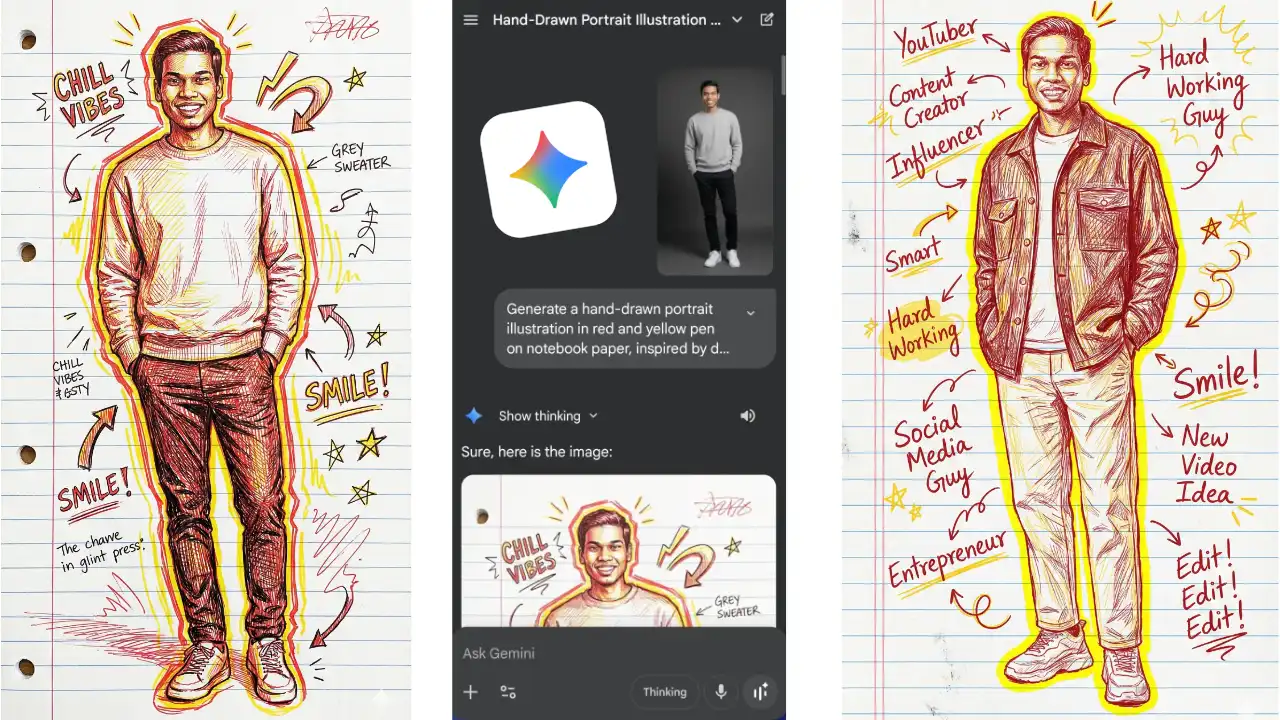
You can use Gemini Pro to generate an avatar image, and Flow to create AI avatar videos. And the best part, Gemini Pro can be availed for free using its student offer or with a Jio sim card.
Here are the prompts you can use to create an avatar image and then also generate a JSON prompt to create the video using Flow.
AI Avatar Image Prompt for Gemini
Create an anime-style 3D render screenshot of a male VTuber (somewhat looking like the attached image person), sitting in a gaming chair behind a white table. The table top is visible for less than half. A laptop is placed on the left side of the table, and a podcast mic is on the right side. He has black hair and fair skin. He is wearing a futuristic black techwear bomber jacket with glowing neon patterns. The background is a dimly lit streamer room with neon accent lighting, shelves filled with camera gear, monitors, and potted plants. High octane render, detailed textures, volumetric lighting –ar 16:9
Video Generation Script for Google Flow
{
  "script": {
    "text": "इस तरह का वीडियो आप भी फ्री में बना सकते हैं. और आज आपको इसी के बारे में बताने जा रहा हूँ."
  },
  "voice_config": {
    "language_code": "hi-IN",
    "name": "hi-IN-Neural2-B",
    "ssml_gender": "MALE",
    "speaking_rate": 1.0,
    "pitch": 0.0
  },
  "animation_timeline": {
    "duration": 5.0,
    "expressions": [
      {
        "start": 0.0,
        "end": 1.5,
        "label": "encouraging_nod",
        "strength": 0.7
      },
      {
        "start": 1.5,
        "end": 3.0,
        "label": "confident_smile",
        "strength": 0.9
      },
      {
        "start": 3.0,
        "end": 5.0,
        "label": "warm_expectant",
        "strength": 0.8
      }
    ]
  }
}
You can watch the YouTube video for a detailed guide.